Skip to content
IT
Plug and play

Budgeting spreadsheets that just work.

Drop in your numbers: the charts, balances and summaries fill themselves in. Built for Google Sheets and Microsoft Excel, in your currency.

  • $ USD
  • $ CAD
  • $ AUD
  • £ GBP
  • € EUR
  • ¥ JPY
One purchase. Pick your currency after checkout.
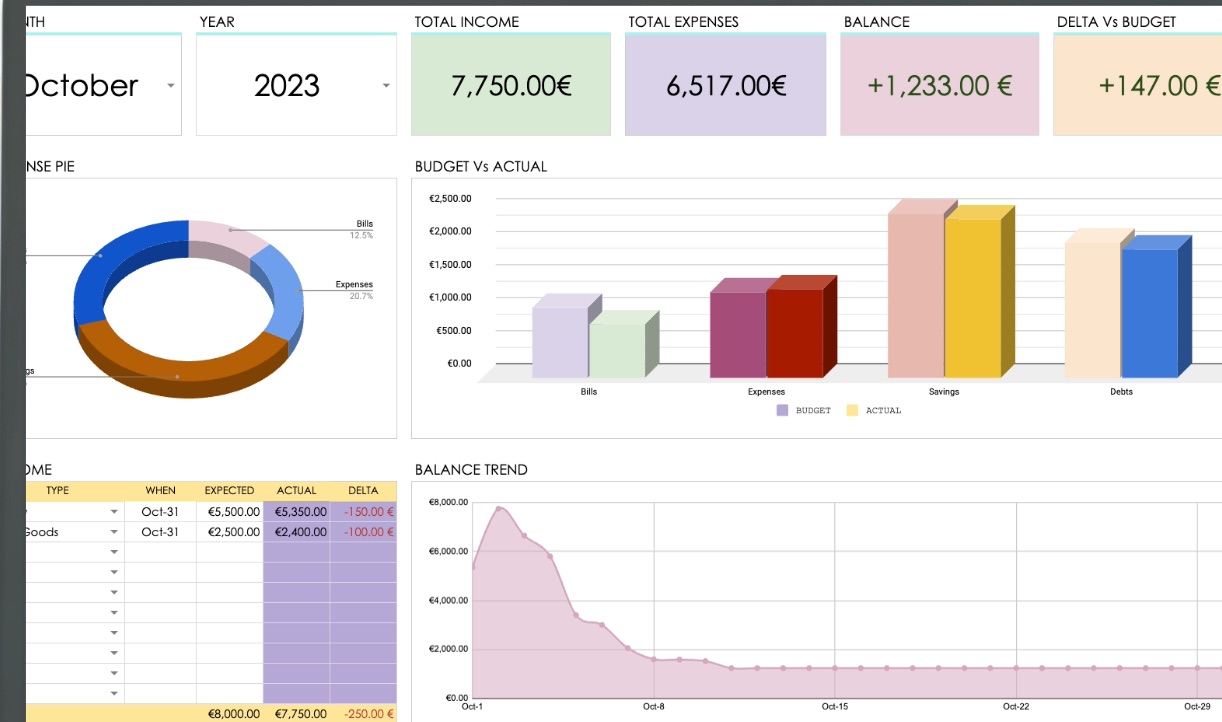
My Simple Monthly Budget: income, expenses and balance for the month, an expense pie, budget versus actual bars and the balance trend.
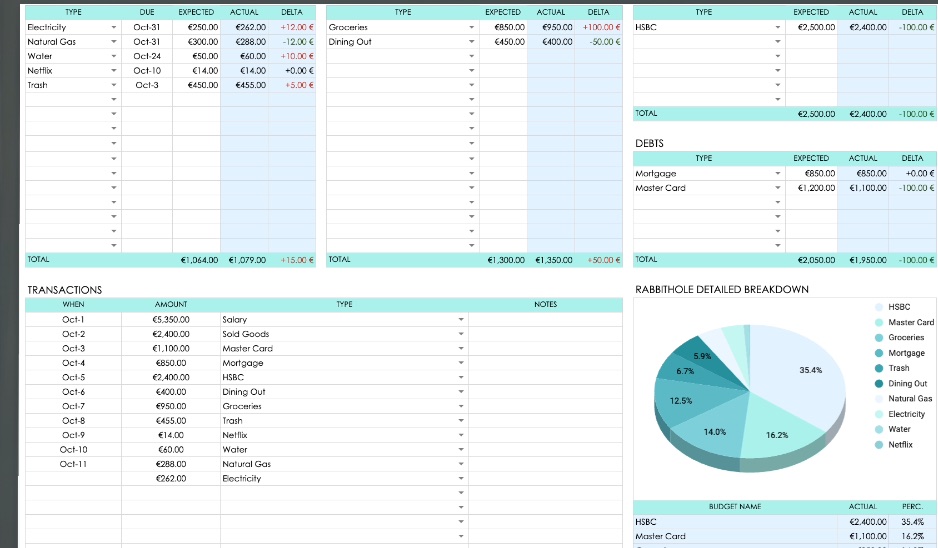
My Simple Annual Budget: the transactions list and a pie chart of spending by category.
Products

Two spreadsheets, two editions.

Every product ships in both Google Sheets and Microsoft Excel. Choose the edition that matches how you work: the features are the same.

My Simple Monthly Budget

4 tabs

One month at a time. The quickest way to see where the money actually goes.

  • Set your categories once in My Simple Definitions: they flow into every dropdown.
  • Expected vs actual for income, bills, expenses, savings and debts.
  • Expense pie, budget-vs-actual bars and a running balance trend.
  • My Simple Calendar bonus tab, synced to your chosen month.
  • Google Sheets Edition
  • MS Excel Edition

My Simple Annual Budget

17 tabs

Twelve months that talk to each other. Pick a starting month and the whole year builds itself.

  • Twelve monthly tabs that sync automatically from the start month you choose.
  • Yearly totals, quarterly balances and expected-vs-actual variance.
  • A detailed per-item breakdown of your whole financial picture.
  • Bonus Calendar and Month-to-Month View tabs.
  • Google Sheets Edition
  • MS Excel Edition
How it works

Buy, open, pick, budget.

You buy, you get two files, you pick your currency. That's the whole thing.

  1. Buy

    Instant digital download. Nothing ships, nothing waits.

  2. Open your card

    A one-page PDF with a button for each currency, plus a step-by-step guide.

  3. Pick your currency

    One click. Google Sheets opens a copy on your Drive; Excel downloads the file.

  4. Start budgeting

    The presets are already there. Edit what you like and start filling in.

Details

Built with care, not with macros.

No add-ons to install, no scripts to authorise, no subscription. It is a spreadsheet; it just happens to be a well-made one.

  • Dropdowns that stay in sync

    Categories live in one Definitions tab. Add a new bill there and every dropdown in the workbook knows about it.

  • It tells you when something is off

    Enter a date outside your budgeting window and the cell turns red, so mistakes surface immediately instead of six months later.

  • Charts that fill themselves

    Expense breakdown, budget vs actual, balance trend and quarterly summaries all update as you record transactions.

  • Protected where it counts

    Calculated cells are marked in light blue and shielded, so a stray paste never quietly breaks your formulas.

  • Six currencies, one purchase

    USD, CAD, AUD, GBP, EUR and JPY. You choose after checkout: no need to pick the right listing.

  • A real guide, not a readme

    Every product comes with an illustrated step-by-step walkthrough of each tab, written for the edition you bought.

FAQ

Questions we actually get.

If yours is not here, write to us: we answer everything.

My Google Sheet opened in view-only mode. Did I get the wrong file?

No, that is expected, and it protects you. The link opens the master template, which nobody can edit. You need your own copy.

In Google Sheets go to File → Make a copy. The copy lands on your own Drive and it is fully editable. Everything you type from then on stays private to you.

Which currencies are included?

USD, CAD, AUD, GBP, EUR and JPY. You get all of them with one purchase: the card that comes with your order has a button for each, and you pick whichever you need.

You can also change the currency formatting yourself at any time; the step-by-step guide shows you where.

Google Sheets or Excel: which edition should I buy?

Pick the one you already use. The features are the same in both.

Google Sheets is better if you want it on every device with nothing to install and automatic saving. Excel is better if you prefer working offline, or if your files need to stay on your own machine.

Do I need to buy a new one every year?

No. The annual edition is not tied to a calendar year: you choose the month and year your twelve-month period begins, and the whole workbook follows. When the year is over, start a fresh copy from your template.

That is why we suggest keeping one clean, untouched copy as your master and always working on a duplicate.

Can I add my own categories?

Yes, and that is the intended way to use it. Open the My Simple Definitions tab and edit, add or remove any entry. There are custom placeholder rows waiting for exactly this.

Anything you define there automatically appears in the dropdown menus across the rest of the workbook.

Does it work on my phone?

You can view and make quick edits in the Google Sheets or Excel mobile apps. But these are wide, chart-heavy spreadsheets: setting one up for the first time is much more comfortable on a laptop or desktop.

I lost my files. Can I get them again?

Write to us at info@p3lab.it and we will sort it out.

This is also why the guide suggests saving your own copy right after purchase.

Can I share or resell the spreadsheet?

Your purchase is for your own personal use. Please do not redistribute, resell or share the files or the access card.

These are made by one person over a lot of late evenings: buying rather than sharing is what keeps them getting better.

Help

Need a hand?

Questions about a purchase, a feature request, or something not behaving as it should: we read and answer every message. Constructive feedback is genuinely welcome.